Instructions for Setting Up Wi-Fi on Windows 7 and Windows 8
To acces the UIR Wi-Fi service, it is mandatory to have a UIR email. Example: [email protected] atau [email protected] atau [email protected] if you encounter issues with your email, please contact IT Support.
For Windows 7 users, open/install the reg file
here and then reboot your PC.
1. Download and Install GÉANTLink Application (eap-supplicant) according to the Windows 7 architecture. To download,GÉANTLink (eap-supplicant) sesuai arsitektur windows 7. Untuk Download silahkan Click Here
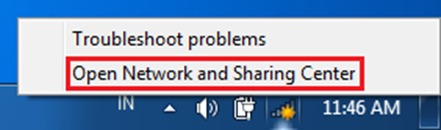
2. On the bottom right of your laptop or computer screen, right-click on the Wi-Fi icon, then openNetwork And Sharing Center
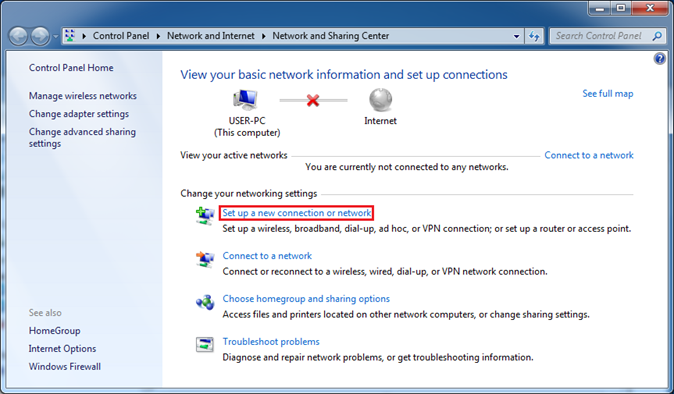
3. Next, Click Setup New Connection Or Network
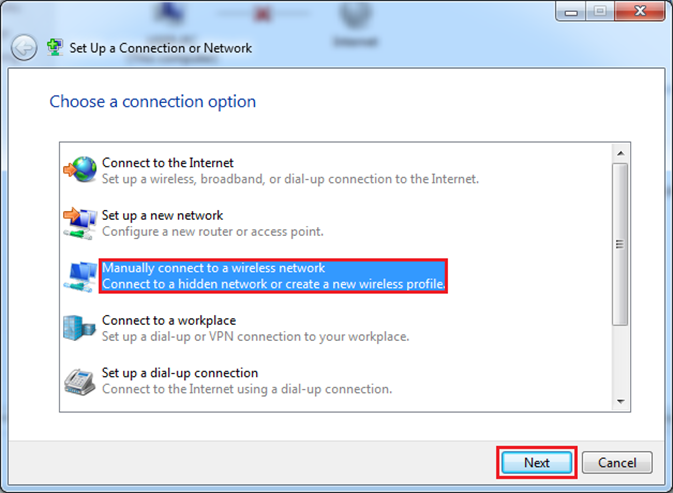
4. Manually Connect To A Wireless Network
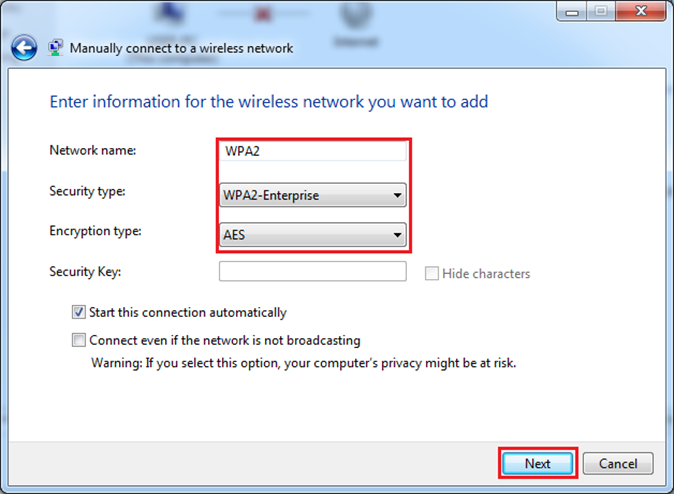
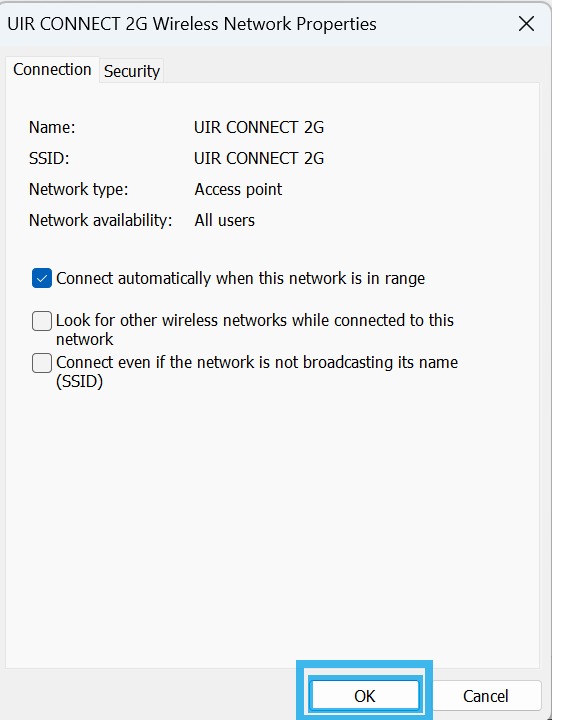
5. Fill in the Network Name withUIR CONNECT 2G and select Security Type Wpa-Enterprise
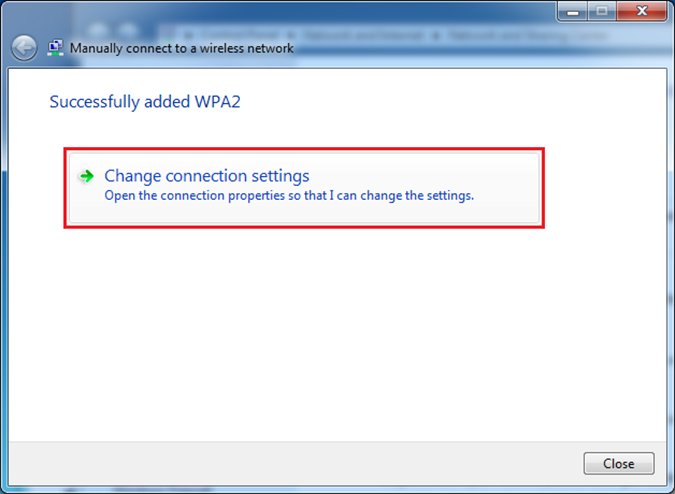
6. Change Connection Settings
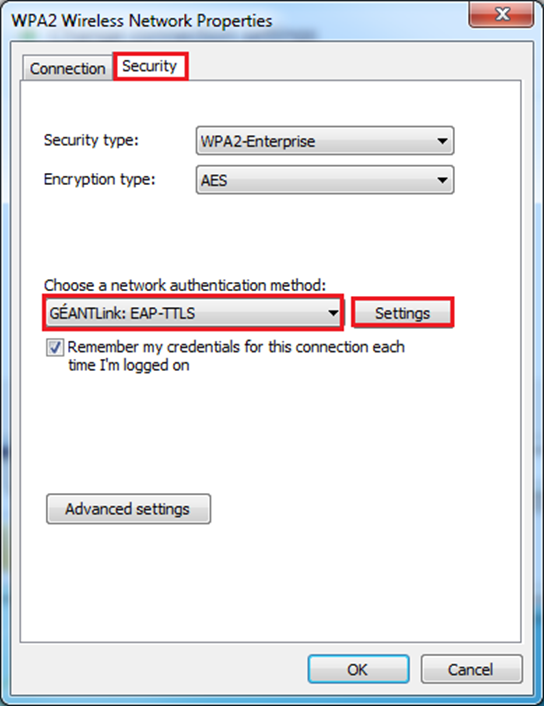
7. Select the Security Tab and Choose Eap-Ttls in the Network Auth Method Dropdown
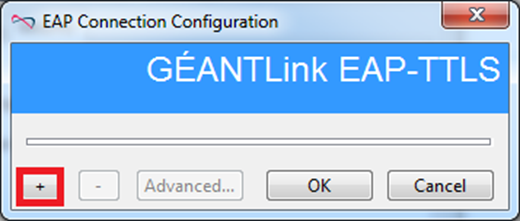
8. Click + in the Bottom Left Corner
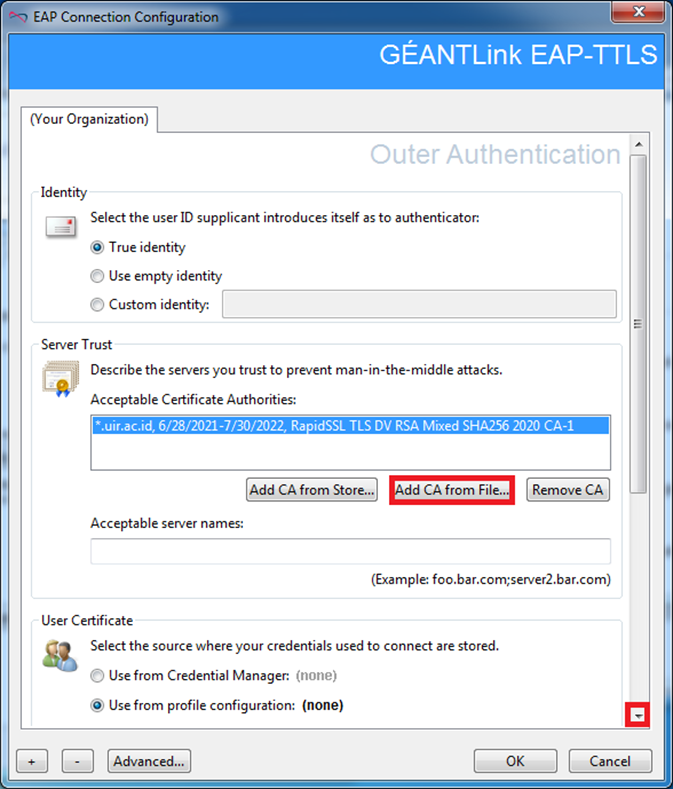
9. Geantlink Add Ca From File, to download the file plese Click Here
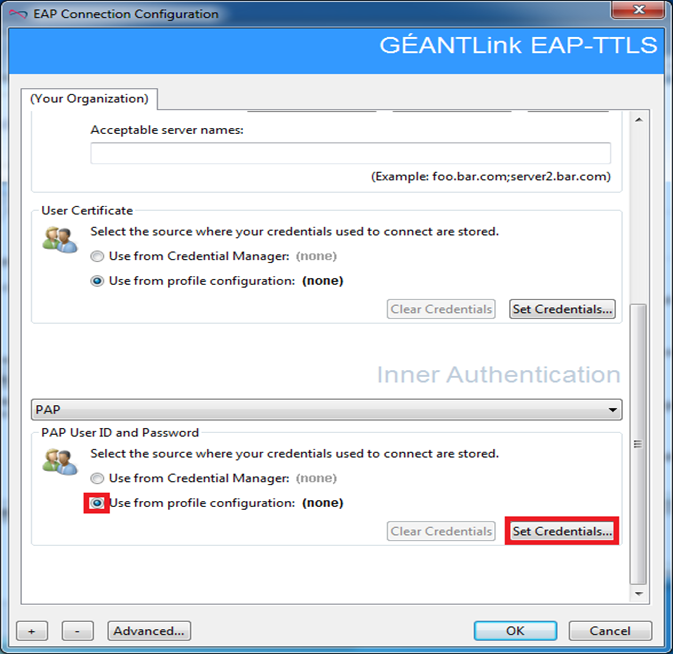
10. Geantlink Add Ca From File ,Set Credentials
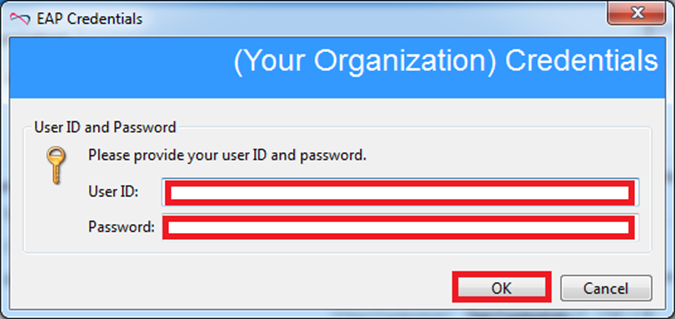
11. Enter Email UIR and Password Email, Then Click Ok
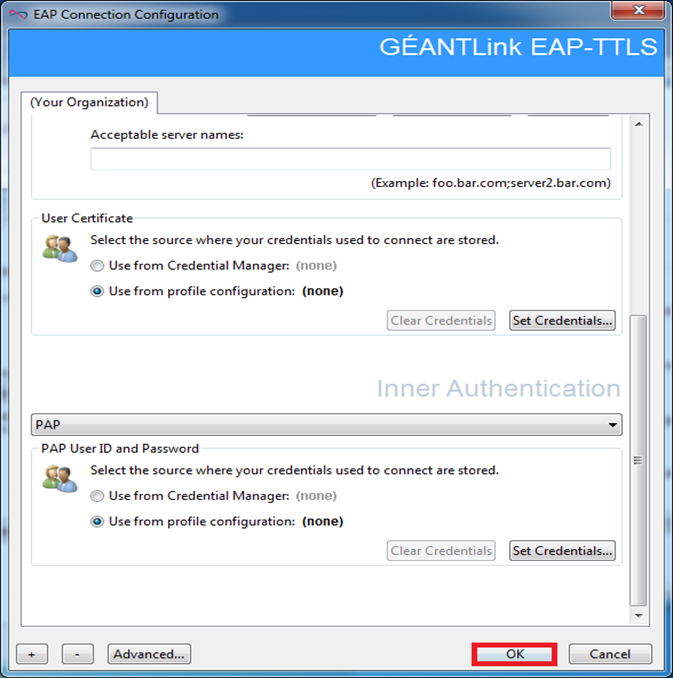
12. Eap Connection Configuration
Then the following display will appear, please Click OK
13. Next, connect your device to the Wi-Fi.
Setting Up Wi-Fi for Windows 10 or Windows 11
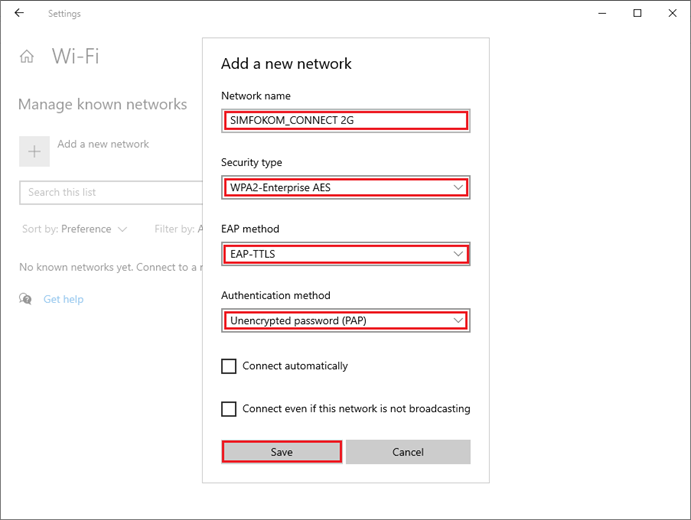
Note : In this guide, the example Wi-Fi used is SIMFOKOM_CONNECT_2G. To use Wi-Fi at UIR, please use UIR CONNECT 5G or UIR CONNECT 2G. Here is the guide :
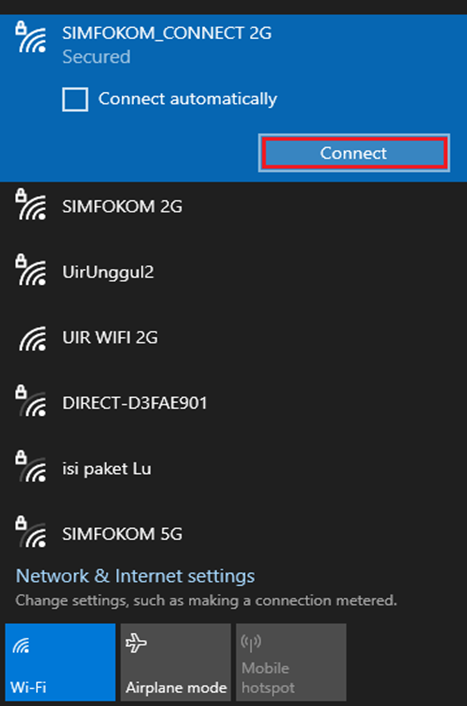
1. Connect to the Network Name
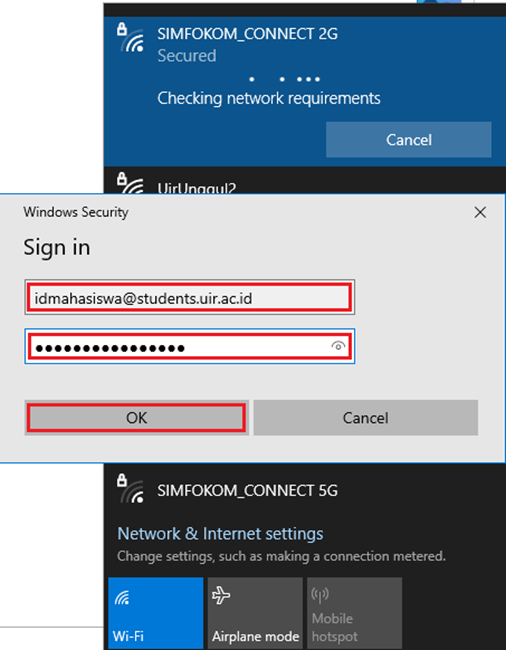
2. Enter Email UIR And Password Email
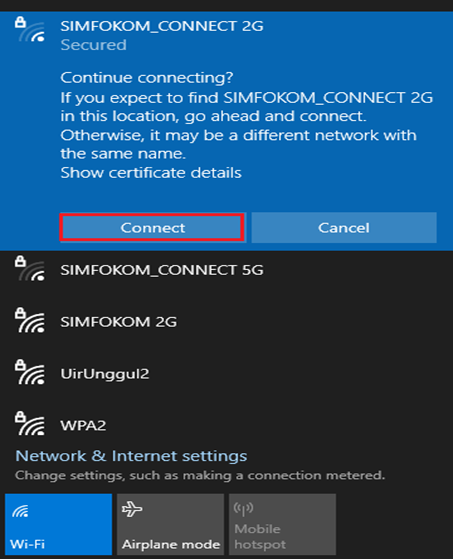
3. Click Connect
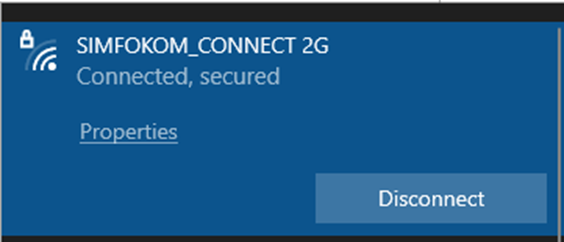
4. Successfully Connect
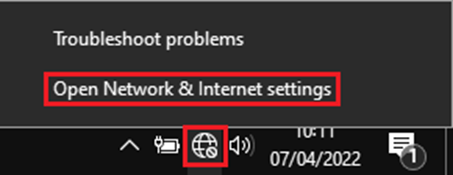
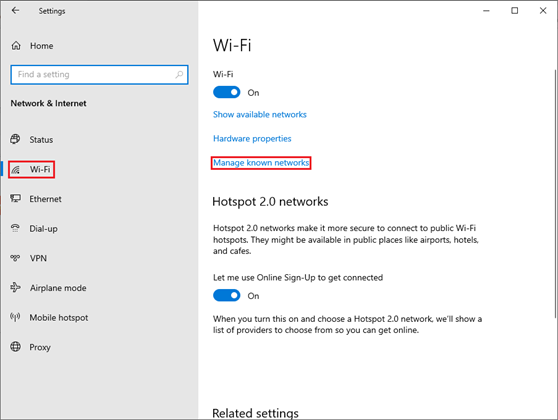
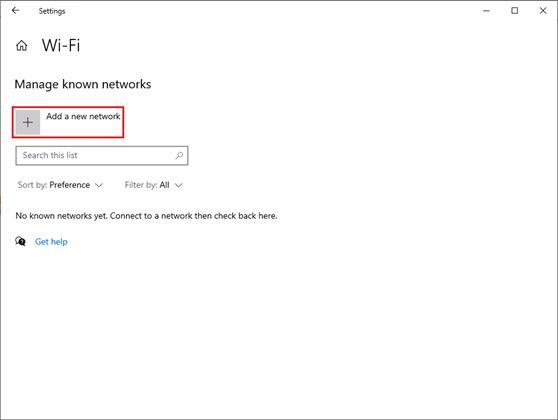
1. Klik Kanan Di Logo Network, Open Network And Internet Settings